
After you have chosen whether to use local or commercial vendor models (or both), you will need to configure the model for use.
If you are using a local model, you must first download a model to your machine. You can choose to save it anywhere (remember the location); however, we suggest saving it in the same location as your other Exponam Analyst Intelligence user files:
C:\Users\{yourUser}|\.exponamExcelAddIn\Models
You can use any gguf model you wish. (The model must have a .gguf name.) We suggest the three below as good text-to-sql of different sizes.
Local Model Options
|
Size |
# of params |
Name |
Download url |
|
Small |
8B |
llama-3-sqlcoder-8b-Q3_K_L.gguf |
|
|
Medium |
14B |
OmniSQL-14B.Q8_0.gguf |
https://huggingface.co/mradermacher/OmniSQL-14B-GGUF/resolve/main/OmniSQL-14B.Q8_0.gguf |
|
Medium |
32B |
OmniSQL-32B.i1-Q4_K_M.gguf |
https://huggingface.co/mradermacher/OmniSQL-32B-i1-GGUF/resolve/main/OmniSQL-32B.i1-Q4_K_M.gguf |
Configuration
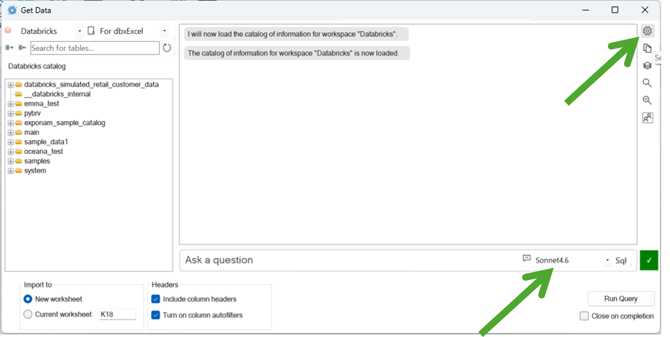
Begin by clicking the "settings" gear button on the right side of the "Get Data" window
In the settings window, click the Add button and choose a local or commercial model.
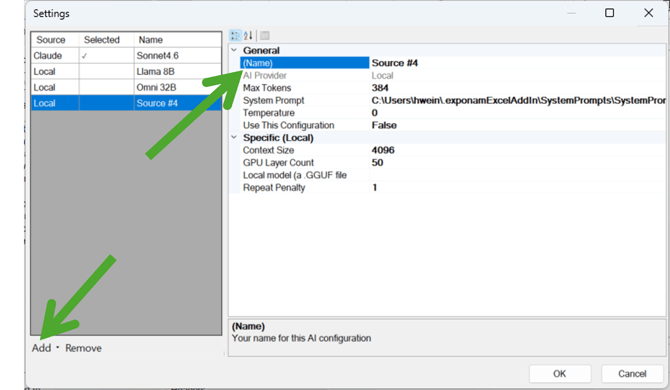
Now step through each attribute on the right side and provide the respective detail for Name(your choice for the model), System Prompt location, and Local model file location.
For the System Prompt, we provide three default prompts - small, medium, and large. These prompts may be found in your Exponam Analyst Intelligence user files at:
C:\Users\{yourUser}\.exponamExcelAddIn\SystemPrompts
We suggest choosing the system prompt and additional settings based on the model size as per the below chart:
|
Model Size |
System Prompt |
Max Tokens |
Temperature |
Context Size |
GPU Layer |
Repeat Penalty |
|
8B |
Small |
384 |
0.0 |
8192 |
50 |
1.0 |
|
12B-40B |
Medium |
512 |
0.0 |
8192 |
99 |
1.0-1.03 |
|
Large Commercial |
Large |
4096 |
0.0 |
n/a |
n/a |
n/a |
Once you have completed the setup, click OK. Your model configuration will now appear in the AI source dropdown on the "Ask a question" line.
Fine Tuning
While we recommend using the provided System Prompts and suggested settings, your data is unique and may benefit from some fine tuning. You are free to use a completely different System Prompt than the one provided or to modify the provided prompt to reflect specific instructions pertaining to your data. You may also alter the Context Size, Repeat Penalty, Max Tokens and Temperature setting values. Do so with caution.
For specific solutions to issues you are encountering, you should contact your data administrators or us directly at support@exponam.com